

Target Personas: New User, End User, Administrator, Team Lead
Step-by-Step Guide
Turn On Two-Factor Authentication
You can only turn it on in the Ctrl Hub web app. The mobile app asks for the code when you sign in, but cannot set it up.- Log in to https://console.ctrl-hub.com
- In the top right corner of the page, select your profile icon, then select Profile
- Select Security
- If you signed in a while ago, enter your password again when asked
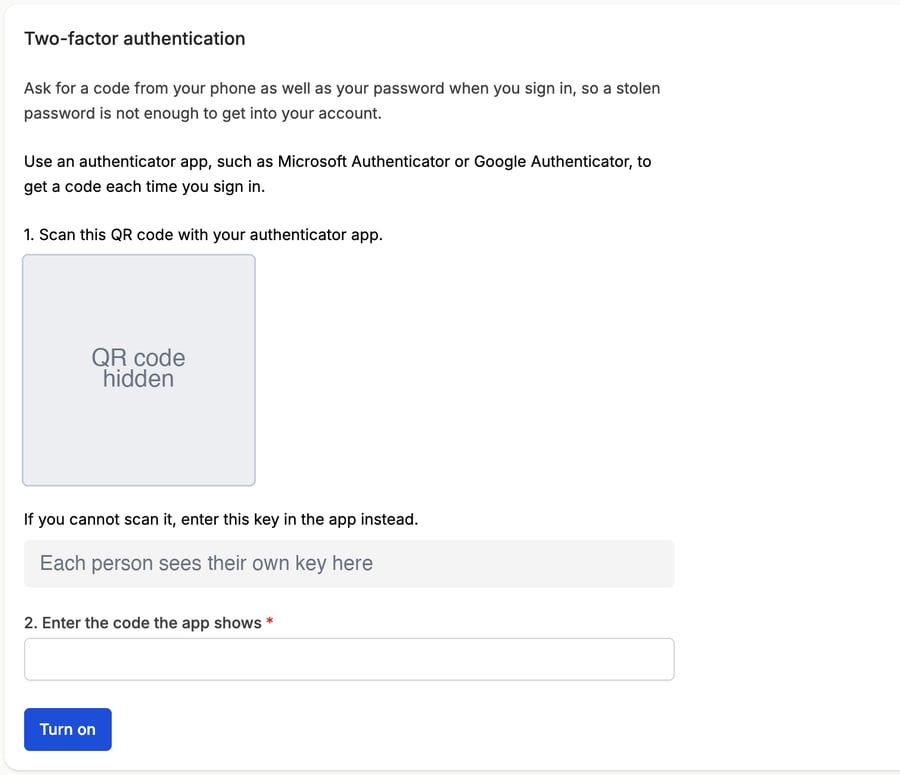
- Open your authenticator app and scan the QR code. If you cannot scan it, enter the key shown under it into the app instead
- Enter the 6-digit code the app shows
- Select Turn on
Create Recovery Codes
Recovery codes let you sign in if you lose your phone. Each code works once.- On the Security page, select Create recovery codes
- Save the codes somewhere safe, such as a password manager
- Select I have saved these codes
Sign In With Two-Factor Authentication
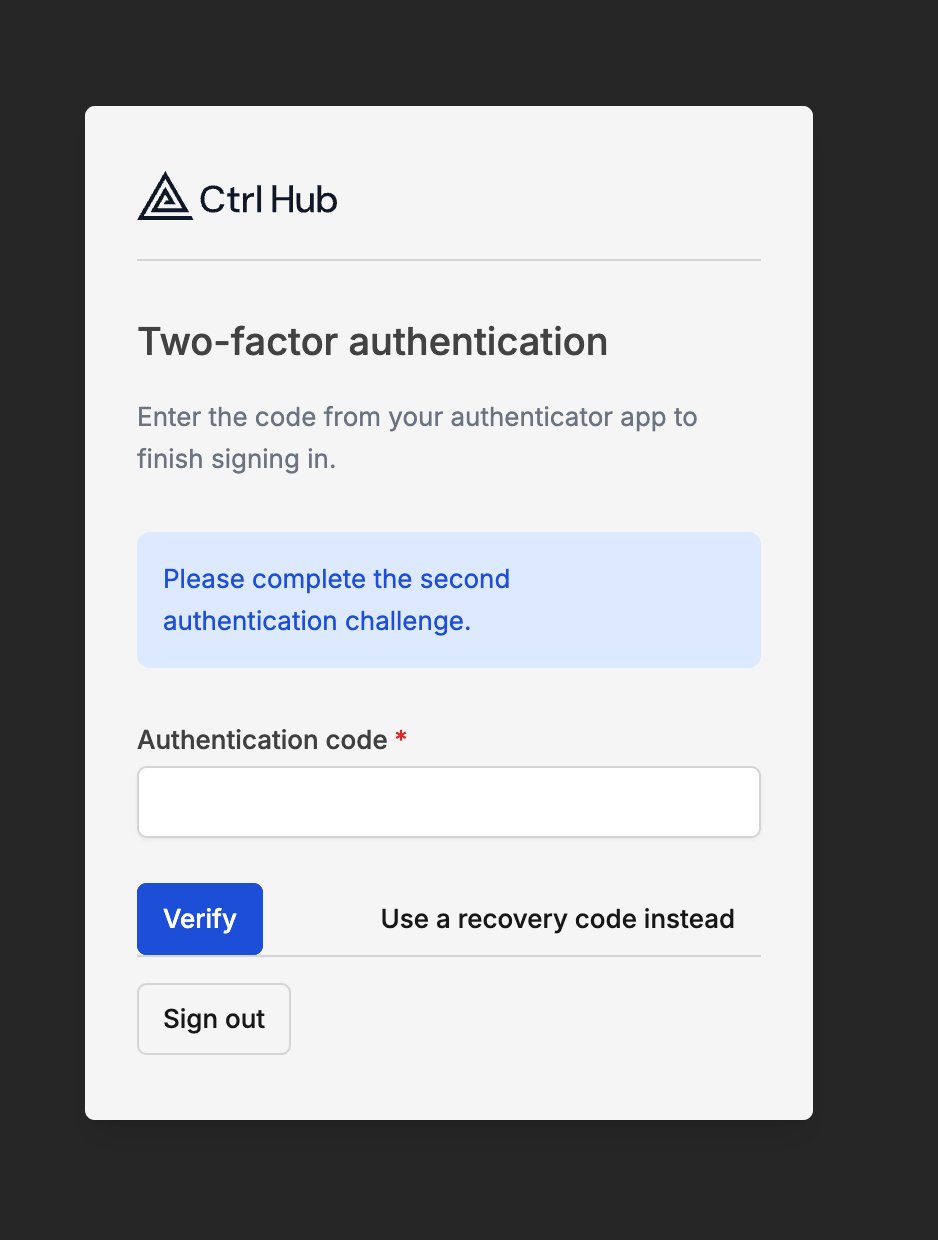
- Enter your email address and password as usual
- Open your authenticator app and enter the current code for Ctrl Hub
- Select Verify
Turn Off Two-Factor Authentication
- Go to Profile, then Security
- Select Turn off and confirm
Lost or Replaced Your Phone
- Sign in with Use a recovery code instead
- Go to Profile, then Security, and select Turn off
- Turn it on again with your new phone, and create a new set of recovery codes
Troubleshooting
My code is not accepted
My code is not accepted
- Codes change every 30 seconds. Wait for a new code and enter it straight away
- Check that your phone sets its date and time automatically. A phone clock that has drifted produces codes that never match
- If your authenticator app holds more than one account, check you are reading the Ctrl Hub entry
The mobile app says my sign-in expired
The mobile app says my sign-in expired
Too much time passed between your password and the code. Go back and sign in again from the start.
I cannot open my organisation
I cannot open my organisation
Your organisation may require two-factor authentication. See Requiring two-factor authentication for what to do.
Need Help?
Can’t find what you’re looking for? Contact our support team.