> ## Documentation Index
> Fetch the complete documentation index at: https://docs.ctrl-hub.com/llms.txt
> Use this file to discover all available pages before exploring further.
# Two-factor authentication
> Protect your account with a code from an authenticator app, as well as your password.
**Target Personas:** New User, End User, Administrator, Team Lead
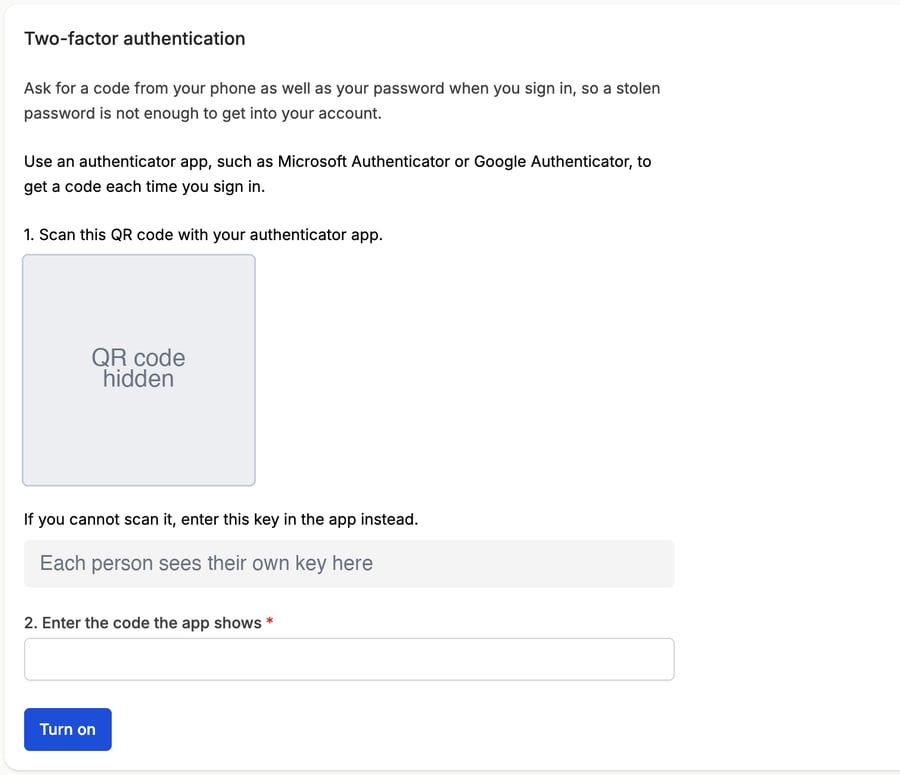
Two-factor authentication asks for a code from your phone as well as your password when you sign in, so a stolen password is not enough to get into your account. You need an authenticator app on your phone, such as Microsoft Authenticator or Google Authenticator.
If you sign in through your organisation's single sign-on, your organisation's own sign-in already provides a second step. There is nothing to set up in Ctrl Hub, and the Security page says so.
## Step-by-Step Guide
### Turn On Two-Factor Authentication
You can only turn it on in the Ctrl Hub web app. The mobile app asks for the code when you sign in, but cannot set it up.
1. Log in to **[https://console.ctrl-hub.com](https://console.ctrl-hub.com)**
2. In the top right corner of the page, select your profile icon, then select **Profile**
3. Select **Security**
4. If you signed in a while ago, enter your password again when asked
5. Open your authenticator app and scan the QR code. If you cannot scan it, enter the key shown under it into the app instead
6. Enter the 6-digit code the app shows
7. Select **Turn on**
 ### Create Recovery Codes
Recovery codes let you sign in if you lose your phone. Each code works once.
1. On the **Security** page, select **Create recovery codes**
2. Save the codes somewhere safe, such as a password manager
3. Select **I have saved these codes**
You can show the codes again, create a new set, or remove them from the same page.
### Sign In With Two-Factor Authentication
1. Enter your email address and password as usual
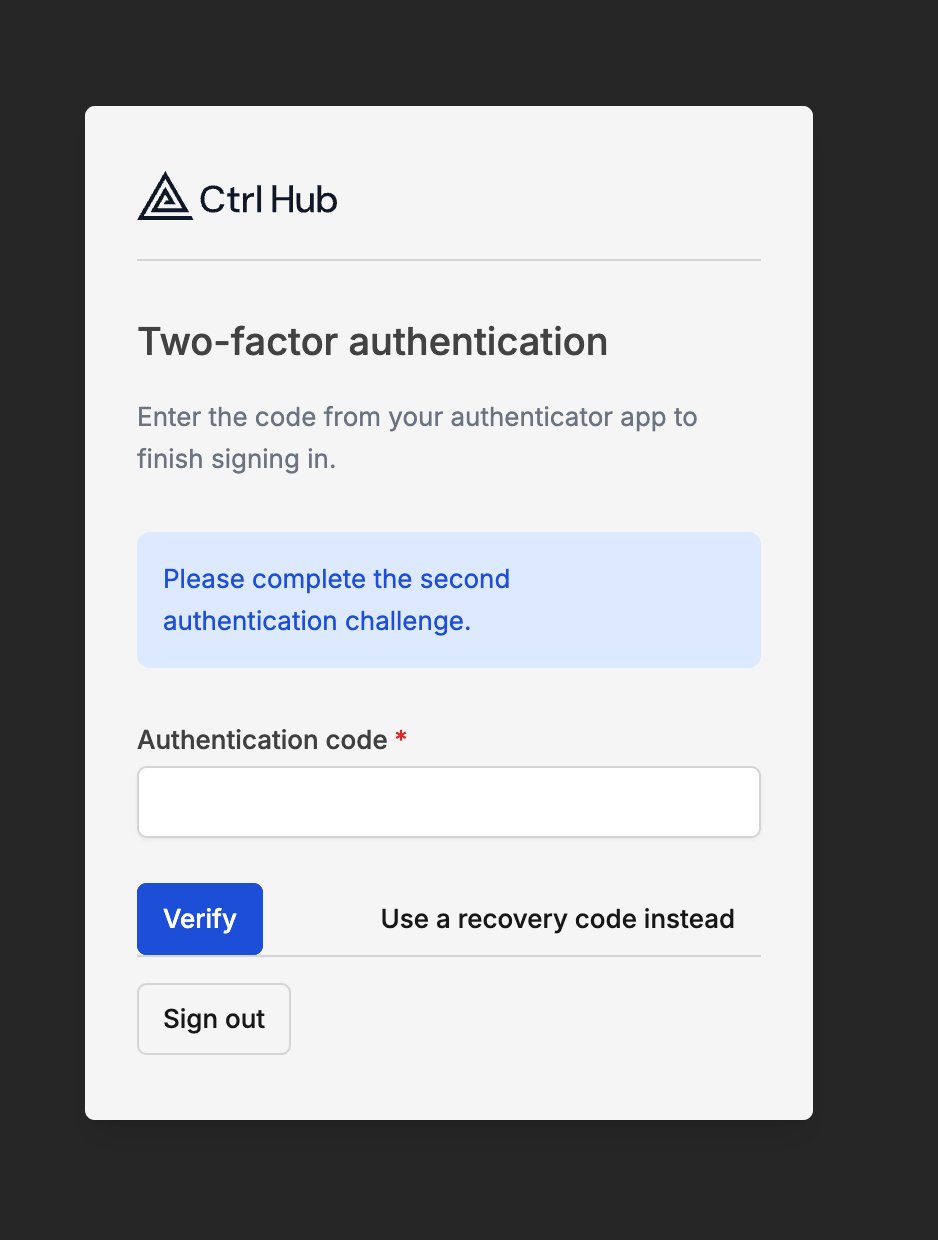
2. Open your authenticator app and enter the current code for Ctrl Hub
3. Select **Verify**
If you do not have your phone, select **Use a recovery code instead** and enter one of your recovery codes.
### Create Recovery Codes
Recovery codes let you sign in if you lose your phone. Each code works once.
1. On the **Security** page, select **Create recovery codes**
2. Save the codes somewhere safe, such as a password manager
3. Select **I have saved these codes**
You can show the codes again, create a new set, or remove them from the same page.
### Sign In With Two-Factor Authentication
1. Enter your email address and password as usual
2. Open your authenticator app and enter the current code for Ctrl Hub
3. Select **Verify**
If you do not have your phone, select **Use a recovery code instead** and enter one of your recovery codes.
 The mobile app asks for the code in the same way. Make sure you have the latest version of the Ctrl Hub app from the App Store or Google Play. Older versions cannot ask for the code.
### Turn Off Two-Factor Authentication
1. Go to **Profile**, then **Security**
2. Select **Turn off** and confirm
This removes your authenticator app and your recovery codes. If your organisation requires two-factor authentication, you lose access to it until you turn it on again.
### Lost or Replaced Your Phone
1. Sign in with **Use a recovery code instead**
2. Go to **Profile**, then **Security**, and select **Turn off**
3. Turn it on again with your new phone, and create a new set of recovery codes
If you have no recovery codes and cannot use your old phone, contact support.
## Troubleshooting
* Codes change every 30 seconds. Wait for a new code and enter it straight away
* Check that your phone sets its date and time automatically. A phone clock that has drifted produces codes that never match
* If your authenticator app holds more than one account, check you are reading the Ctrl Hub entry
Too much time passed between your password and the code. Go back and sign in again from the start.
Your organisation may require two-factor authentication. See [Requiring two-factor authentication](/guides/getting-started/requiring-two-factor-authentication) for what to do.
***
Can't find what you're looking for? Contact our support team.
This documentation is built and hosted on [Mintlify](https://mintlify.com), a developer documentation platform.
The mobile app asks for the code in the same way. Make sure you have the latest version of the Ctrl Hub app from the App Store or Google Play. Older versions cannot ask for the code.
### Turn Off Two-Factor Authentication
1. Go to **Profile**, then **Security**
2. Select **Turn off** and confirm
This removes your authenticator app and your recovery codes. If your organisation requires two-factor authentication, you lose access to it until you turn it on again.
### Lost or Replaced Your Phone
1. Sign in with **Use a recovery code instead**
2. Go to **Profile**, then **Security**, and select **Turn off**
3. Turn it on again with your new phone, and create a new set of recovery codes
If you have no recovery codes and cannot use your old phone, contact support.
## Troubleshooting
* Codes change every 30 seconds. Wait for a new code and enter it straight away
* Check that your phone sets its date and time automatically. A phone clock that has drifted produces codes that never match
* If your authenticator app holds more than one account, check you are reading the Ctrl Hub entry
Too much time passed between your password and the code. Go back and sign in again from the start.
Your organisation may require two-factor authentication. See [Requiring two-factor authentication](/guides/getting-started/requiring-two-factor-authentication) for what to do.
***
Can't find what you're looking for? Contact our support team.
This documentation is built and hosted on [Mintlify](https://mintlify.com), a developer documentation platform.