> ## Documentation Index
> Fetch the complete documentation index at: https://docs.ctrl-hub.com/llms.txt
> Use this file to discover all available pages before exploring further.
# Requiring two-factor authentication
> Make two-factor authentication compulsory for everyone in your organisation, and what members see when they have not set it up.
**Target Personas:** Administrator, End User
An administrator can require every member of an organisation to use a second factor when they sign in. A member counts as having a second factor if they have turned on [two-factor authentication](/guides/getting-started/two-factor-authentication), or if they sign in through the organisation's single sign-on.
## Who It Applies To
* **Members without a second factor** lose access to the organisation straight away, until they set one up. Their other organisations are not affected
* **Members who sign in through your organisation's single sign-on** already count as having a second factor
* **People from other organisations working in yours**, such as contractors, are held to your setting too
* **Service accounts** are not affected
## Before You Switch It On
Ask your members to set up two-factor authentication and to update the Ctrl Hub mobile app to the latest version first. Older versions of the app sign the member out when the organisation requires two-factor authentication, and forms waiting to be sent from the phone can fail.
You must have signed in with two-factor authentication or single sign-on yourself. If you have not, the Security page explains this and will not let you switch the requirement on, so you cannot lock yourself out.
## Step-by-Step Guide
### Require Two-Factor Authentication
1. Log in to **[https://console.ctrl-hub.com](https://console.ctrl-hub.com)**
2. Navigate to **Admin > Identity and Access > Security**
3. Check the warning, which says how many active members have no second factor or single sign-on. Expand the list under it, for example **Show the 3 members**, to see who they are
4. Select **Require two-factor authentication**
5. Read the confirmation, which names the first few members affected, and select **Require it**
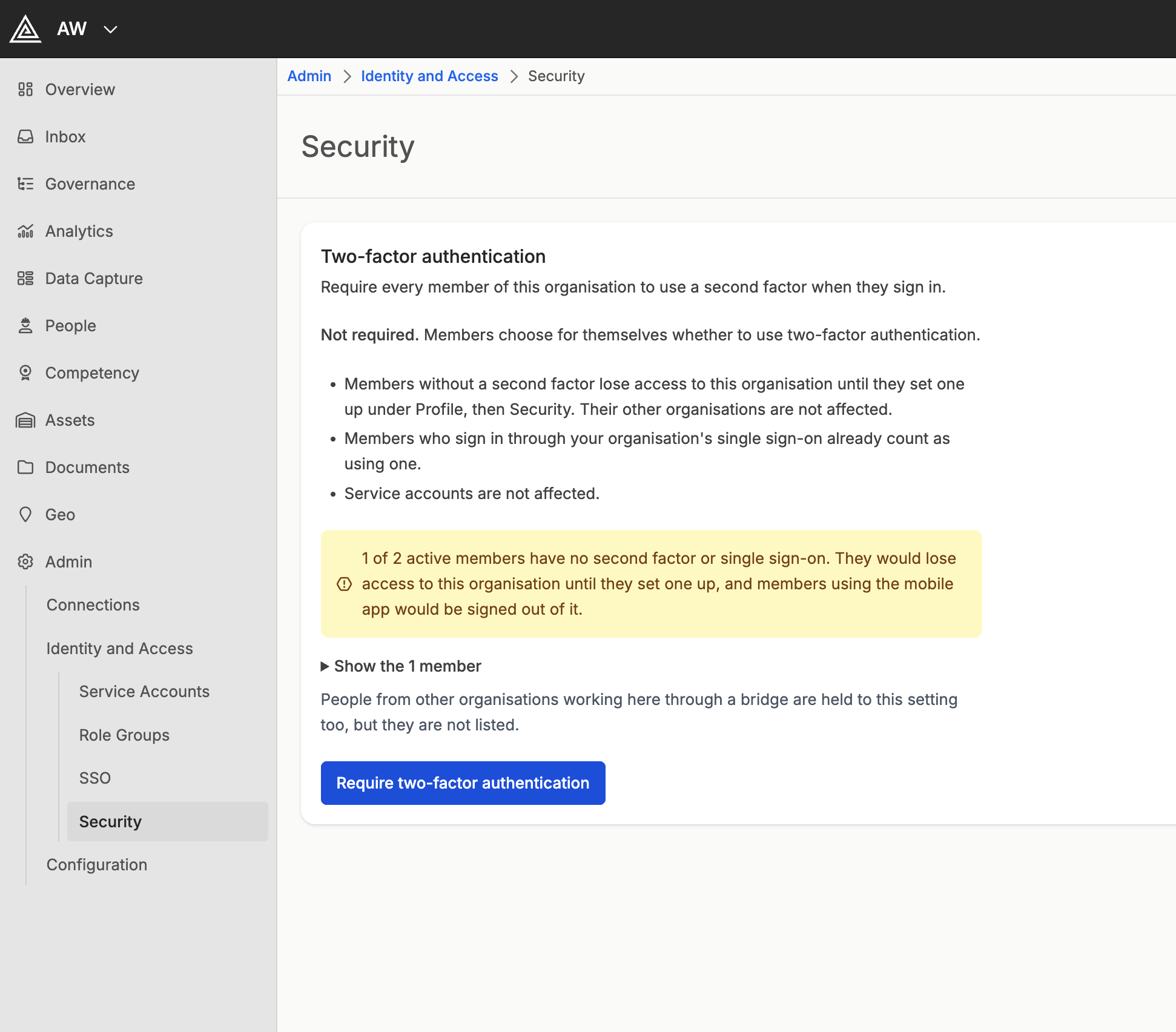 The list shows your organisation's own members only. People from other organisations working in yours are not listed, but need a second factor too.
### Stop Requiring It
1. Navigate to **Admin > Identity and Access > Security**
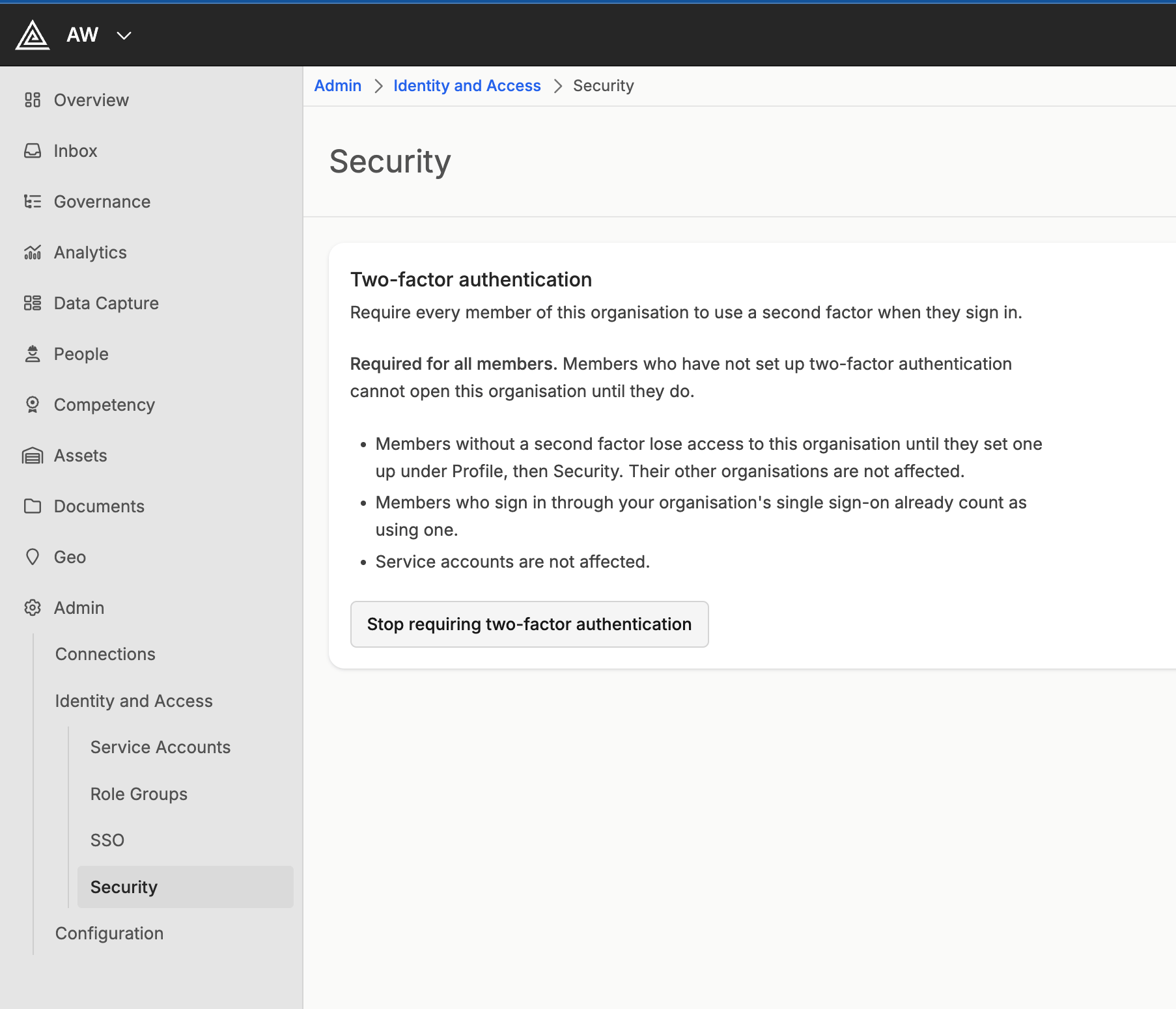
2. Select **Stop requiring two-factor authentication**
3. Select **Stop requiring it**
Members can then open the organisation with just their password again.
The list shows your organisation's own members only. People from other organisations working in yours are not listed, but need a second factor too.
### Stop Requiring It
1. Navigate to **Admin > Identity and Access > Security**
2. Select **Stop requiring two-factor authentication**
3. Select **Stop requiring it**
Members can then open the organisation with just their password again.
 ## What a Member Without It Sees
**On the web**, opening the organisation takes the member to their **Security** page, with a message that the organisation requires two-factor authentication. Once they have turned it on, they select **Continue to** the organisation.
If the page then says the organisation still needs this sign-in to use their authenticator app, they turned it on during a sign-in that did not use it. They sign out, then sign in again with a code from the app.
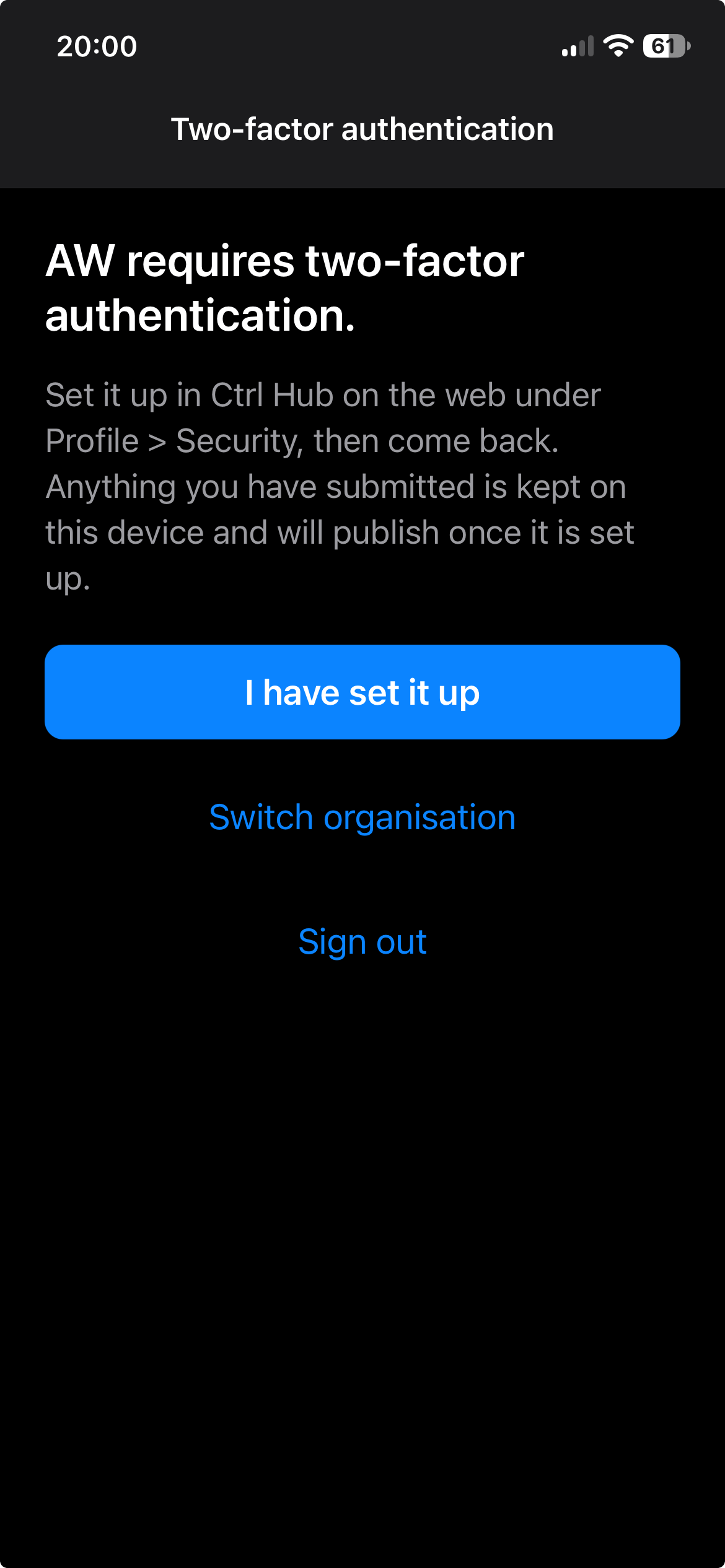
**On the mobile app**, the member sees the screen below instead of their work. They turn on two-factor authentication on the web, then select **I have set it up**. Anything they submitted stays on the phone and is sent once they are let back in. **Switch organisation** opens one of their other organisations in the meantime.
## What a Member Without It Sees
**On the web**, opening the organisation takes the member to their **Security** page, with a message that the organisation requires two-factor authentication. Once they have turned it on, they select **Continue to** the organisation.
If the page then says the organisation still needs this sign-in to use their authenticator app, they turned it on during a sign-in that did not use it. They sign out, then sign in again with a code from the app.
**On the mobile app**, the member sees the screen below instead of their work. They turn on two-factor authentication on the web, then select **I have set it up**. Anything they submitted stays on the phone and is sent once they are let back in. **Switch organisation** opens one of their other organisations in the meantime.
 ***
Can't find what you're looking for? Contact our support team.
This documentation is built and hosted on [Mintlify](https://mintlify.com), a developer documentation platform.
***
Can't find what you're looking for? Contact our support team.
This documentation is built and hosted on [Mintlify](https://mintlify.com), a developer documentation platform.